In this guide 11 sections
- What you need before you start
- Step 1: Open the right Google account
- Step 2: Name, category and service area
- Step 3: Verify it
- Step 4: Services, hours and description
- Step 5: Photos
- Step 6: Add helpers as managers, never owners
- Step 7: Set up your reviews
- Don’t click the ads button
- What happens after setup
- Frequently asked questions
I set up a free Google Business Profile and a website. I then started getting reviews. After a few months I was getting free leads every week. I used that to grow my business to over 450 clients.
Since then I have set these profiles up for about 70 lawn businesses. I do it on a video call with the owner, and it takes about half an hour.
This week I did one for a lawn guy in the US. He had a Gmail account, a phone number and some photos. By the end of the call his profile was built and waiting on Google to verify it.
This is exactly what we did, in the order we did it. You can follow it yourself tonight.
If your profile is already set up and it’s not bringing in work, read why your lawn care Google Business Profile is not showing up instead. This post is for getting it right the first time.
What you need before you start
- A Gmail account that will own the business. Yours, the same one you use for your business. Whoever owns the login owns the profile.
- Your business name, exactly as it is on your van. Same spelling. If it’s “Lawncare” as one word, it’s one word everywhere.
- Your phone, in your hand. Google will probably text a code to the business number while you’re setting it up.
- Your town, and the towns around it you’ll travel to.
- A list of your services and your hours.
- At least six photos of real jobs. Three will do to start. More is better.
- A computer. Setup is easier on a big screen. Posting later is done on your phone.
Best of all: a website on your own domain, with an email address on that domain. It makes verification much easier. More on that in Step 3.
No website yet? You can still set the profile up and add the website later. But you will want one. The profile gets you found. The website is where people decide to ring you.
Setting up your profile is day 9 of the free 28-day challenge. One job a day until you have paying customers.
Step 1: Open the right Google account
This sounds obvious. It’s where most setups go wrong.
Lots of people have three or four Google accounts on the one computer. Personal, business, an old one from years ago. If you build the profile in the wrong one, you’ll spend months trying to get it back.
- Open your web browser, signed in to the Gmail account the business will use.
- Click the grid of dots (Google apps) in the top right corner.
- Find Business Profile Manager. Or just go to business.google.com.
- Check the little picture in the top right corner is the right account before you click anything else.
When I set one up for a client, I give them two choices. They log in and do it themselves while I talk them through it, or they give me access and I do it for them. Most pick the first one, and I think that’s the right call. This week’s guy said he wanted to do it himself so he’d know how to manage it later. Good thinking.
If someone doesn’t have a Gmail account at all, I make one for them during setup and hand the password over when we’re done.
Step 2: Name, category and service area
Click Add business and work through the screens.
- Business name: exactly as it is on your van. Nothing added. No “Best Lawn Mowing Cheap Rates” on the end. That is the fastest way to get suspended.
- Category: type “lawn” and pick Lawn care service. You can add more categories later, like Gardener or Landscaper, but only if you really do that work.
- Location customers can visit: say No, unless you have an office that is staffed during work hours. You go to them. That makes you a service area business.
- Service areas: your main town first, then the towns around it. This week we put in his home city and four towns nearby, across two states. Only add places you will actually drive to.
- Address: Google still asks for it so it can verify you. Enter it and check the pin is on the right spot on the map. Because you said No above, it won’t show on your profile.
- Phone: your business number. Use a number that can get a text message, because that’s often how Google verifies you.
- Website: add it if you have one. If not, skip it and come back later.
Same name, same number, same towns, everywhere. Google trusts a business that says the same thing in every place it looks.
More: Unique lawn care name ideas in 3 easy steps
Step 3: Verify it
Google won’t show you until it has checked you are real.
This week it was easy. Google texted a six-digit code to his business phone while we were still on the call. He typed it in. Done. Now Google reviews it, and it usually comes back within five days.
About nine out of ten of the profiles I set up go live within 5 days. That’s the honest average, not a promise. Google decides how it checks you and how long it takes.
The easy way: a website with your own email address
If you have a website on your own domain, with an email address on that same domain, verifying gets a lot easier. Something like yourname.com and an email like [email protected], not a Gmail.
Google can email the code straight to that business email. You click it, type in the code, done. In my experience that takes your chances of getting verified first time up to about 90%.
It works because the email proves you own the website, and the website proves the business is real. A Gmail address and no website gives Google much less to go on.
So if you’re getting a website anyway, do it before the profile, or at the same time.
If Google asks for a video
Sometimes Google says no to the code and asks for a video instead. Don’t panic. It’s a short, simple video, filmed by you, showing:
- Your vehicle, with your signwriting on it if you have it
- A street sign, so they can see where you are
- Your tools and gear
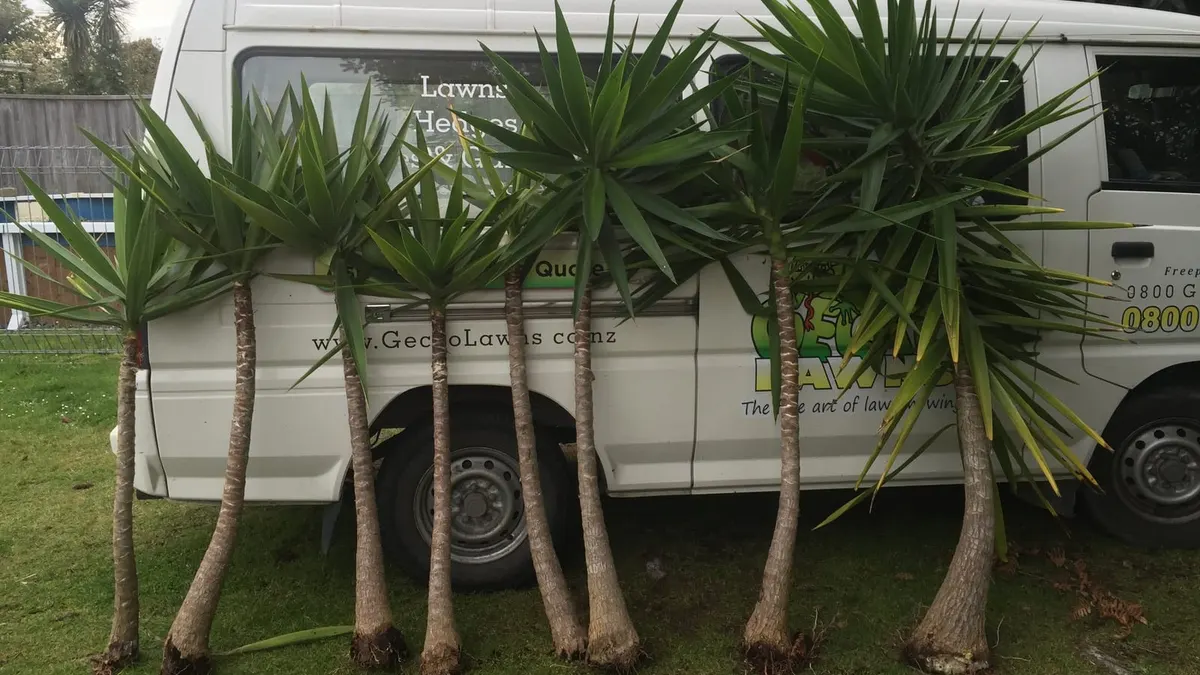
Only you can do that video. It has to be filmed by the person who runs the business. Nobody else can do it for you.
While you wait, do nothing clever. Don’t make a second profile because the first one is slow. Two profiles for one business is how people end up suspended.
Step 4: Services, hours and description
You can do this part while Google is checking you.
Services. Google suggests a list once you pick your category. Tick every one you do. This week that was mulching, grass seeding, yard work, weed control, sod laying, hedge trimming and gardening. If something you do isn’t on the list, add it as a custom service. Use the words your customers use, not the words we use.
Hours. Be open when people ring. We set his to 7am to 7pm on weekdays and 7am to 5pm on Saturday. Homeowners look for a lawn guy at night and on weekends. If your profile says closed, they ring the next one.
Description. You get 750 characters. I write these with AI now. I tell it what the business does and it drafts one in a few seconds. Then I fix anything that doesn’t sound right.
This week’s said:
- What he does: regular mowing, trimming and property cleanups
- That it’s one owner, doing the work himself
- That he’s local and building his name in the area
- That he mows weekly or fortnightly
Break it into short paragraphs. A wall of text on a phone screen doesn’t get read.
More: The perfect lawn care service list and How to use AI in your lawn care business
Step 5: Photos
He had three photos. We uploaded them, and I asked him for more.
Aim for at least six to start. Real jobs, your own photos, no stock. Your own photos help you show up in your own town, and you’ll want them for your website later too.
One thing to know: Google can reject photos with a lot of writing on them. Flyers, price lists and graphics with big text often get knocked back. Stick to photos of the work.
The trick to getting enough photos is to take them while you work:
- Take a few shots at every job. Before, half done, and after, from the same spot.
- Set an alarm or a timer on your phone to remind you. When you’re busy, you forget. Every time.
- Hold the phone sideways. Landscape photos fit the profile and your website better.
- No customer faces, no house numbers, no number plates.
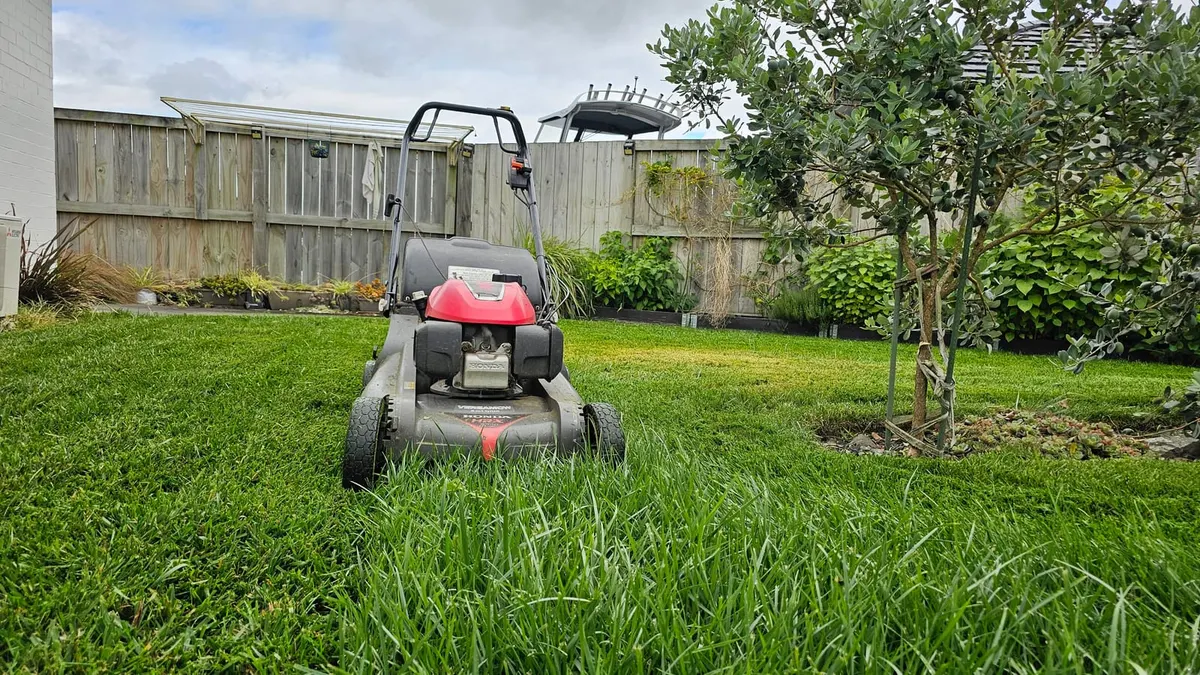
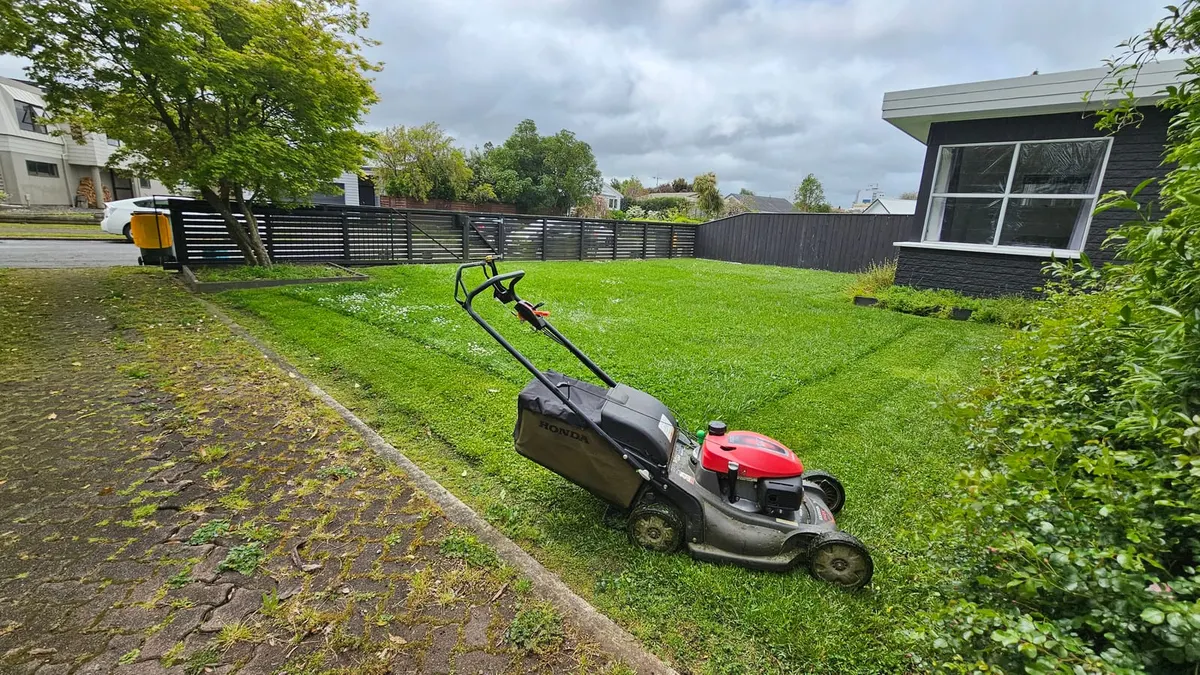
After that, add a few new ones every week. On your phone, open the Google Maps app, tap your profile picture, then Your Business Profile, then Add photo.
More: Lawn mowing standards, time to raise the bar
Step 6: Add helpers as managers, never owners
At the end of the call I sent myself an invite as a manager on his profile. That way I can watch the verification come through and fix anything without chasing him.
If anyone helps you with your profile, whether that’s me, a marketing company or your daughter, add them the same way. In your profile, open the menu (the three dots), go to Business Profile settings, then Managers, then Add, and put in their email.
Make them a manager, not an owner. A manager can help. An owner can take it off you. If you ever part ways, you remove a manager with one click and the profile, the reviews and the phone calls stay with you.
And if you did give someone your password to get set up, change it when they’re finished.
Your reviews take years to build. They are worth more than your mower. Own them.
Step 7: Set up your reviews
A profile with no reviews doesn’t get many calls. Reviews are what move you up the map, and what make a homeowner ring you instead of the next listing. My own profile is on 87 reviews and brings in 2 to 3 leads a week, all year round.
Google experts say you need around three reviews averaging over 3.5 stars before you really start to show. So get your first few in fast.
- Get your link. On your profile, tap Ask for reviews and copy the link.
- Save a text you can send in two taps. Put this in your phone notes:
“Thanks for having us today. If you’re happy with the job, a quick Google review would really help us out: [your link]” - Send it the same day as the job. To every happy customer. Not “when I remember”.
- Keep track of who you’ve asked. A simple spreadsheet stops you asking the same person twice and forgetting everyone else.
I gave him an invite to my community. There’s a video in there showing how I ask for reviews by hand, and the spreadsheet I use to track them. It’s free for you too.
Know you’ll forget to ask in the busy season? That’s why I built Review Robot. It texts one past customer a night from your own phone and asks for a Google review.
More: How I ask for Google reviews and A Google review request system
Don’t click the ads button
Once your profile is up, Google will keep offering to run ads for you, straight from the profile. It looks easy. One button, set a budget, done.
I told him not to. Those ads are set up for a shop or a café that people walk into, not a lawn guy who drives to them. They can burn through your budget on clicks that were never going to be customers.
If you want to run Google Ads, set them up properly as a separate campaign, aimed at the towns you mow and the words people type when they want a lawn mowed. Or get someone who does lawn care ads to do it.
What happens after setup
Setup is one evening. The results come from the weeks after it.
Expect a quiet start. Verification is usually quick, but ranking takes a few months, and it keeps getting better as the reviews come in. If you need work this week, that’s what flyers and doorknocking are for.
Once a week, from your phone:
- Post one update. In the Google Maps app, go to Your Business Profile, tap Add update, add a photo and one line, like “Fresh mow and edge on Oak Street today”. Set the button to Call now.
- Add three photos.
- Ask for reviews.
Once a month, open Performance on your profile and look at the Searches breakdown. That’s the exact words people typed before they found you. Any word in that list that isn’t in your services, add it.
Do today: go to business.google.com and see if you already have a profile. Google sometimes creates a listing for a business on its own. If yours is there, claim it and start at Step 4. If not, start at Step 1.
Frequently asked questions
Is a Google Business Profile free?
Yes. Setting it up, photos, posts and reviews are all free. You never have to pay Google anything to have one. The only thing that costs money is ads, and you don’t need them.
How long does it take to set up a Google Business Profile?
About 30 minutes if you have your details ready. Verification is up to Google. About nine out of ten of the ones I set up go live within 5 days, but Google never promises a date.
Can I set up a Google Business Profile without a website?
Yes. Leave the website box empty and add it later. You will get more calls once you have one, because the website is where people decide to ring you.
Do I have to show my home address?
No. Google asks for an address to verify you, but if you say customers can’t visit you and add service areas instead, the address stays hidden.
What if Google asks for a verification video?
It’s less likely if you have a website on your own domain and an email address on that domain, because Google can email the code there instead. If it does ask, film a short video yourself showing your vehicle, a street sign where you are, and your tools. It has to be you. Nobody else can do it for you.
Can someone else set up my Google Business Profile for me?
They can help, but it should be created under your own Gmail. Then add them as a manager, not an owner, so you can remove them any time.
What category should a lawn mowing business use?
Lawn care service as the main category. Add Gardener or Landscaper as extra ones only if you really do that work.
The next step
When I build a lawn business a website, I set the Google Business Profile up with the owner on a call, exactly like this. Every site comes with your own domain and a matching email address, so Google can email the verification code straight to you. It’s $59 USD a month, and I build it first, free, so you see it live before you pay a cent.
If you’d rather do it yourself, set aside 30 minutes tonight and work down this list. If you get stuck on a step, come and ask in my community. Someone has already been stuck on it.

34 years mowing lawns. Built it up to five vans and 450 contracts, then cut back to a 20-hour week on the best lawns. My story.
Want more lawns?
I build lawn care websites first, free. You see it live before you pay a cent.